How To Use SmartLabels
Follow 6 simple steps to start organizing your home, garage, or business with SmartLabels QR code labels.
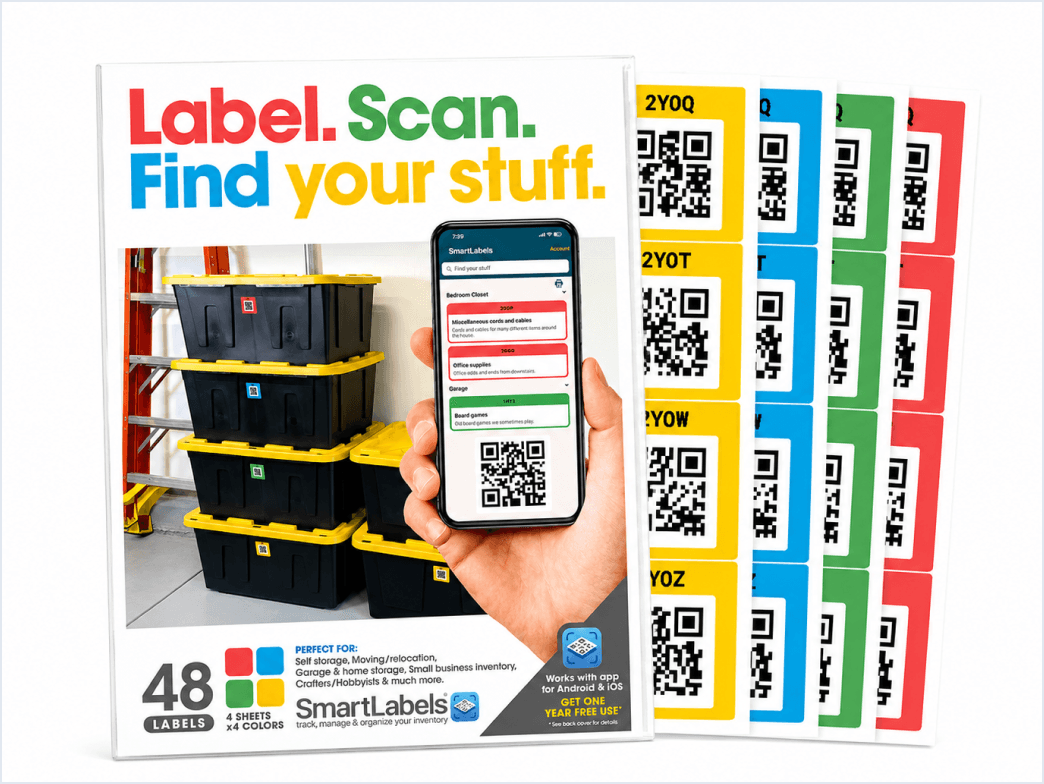
Purchase SmartLabels
Get your pack from the official site, Amazon, Walmart, TikTok Shop, or select Staples stores. Choose from Original, Modern, Neon, Starter or Mini packs ranging from 4 to 48 labels. Free shipping on all orders.
- Shop at qrsmartlabels.com, Amazon, or Walmart.com
- Packs from 4 to 48 labels
- Original, Modern, Neon, Starter or Mini styles
- Free shipping on all orders over $20
Download the Free App
Download the SmartLabels app for free on the Apple App Store or Google Play Store. No credit card or subscription required, the core app is completely free to use.
- Search "SmartLabels" in your app store
- Supported on both iOS and Android mobile devices
- No subscription for core features
- Create a free account with your email
Apply Label & Scan QR Code
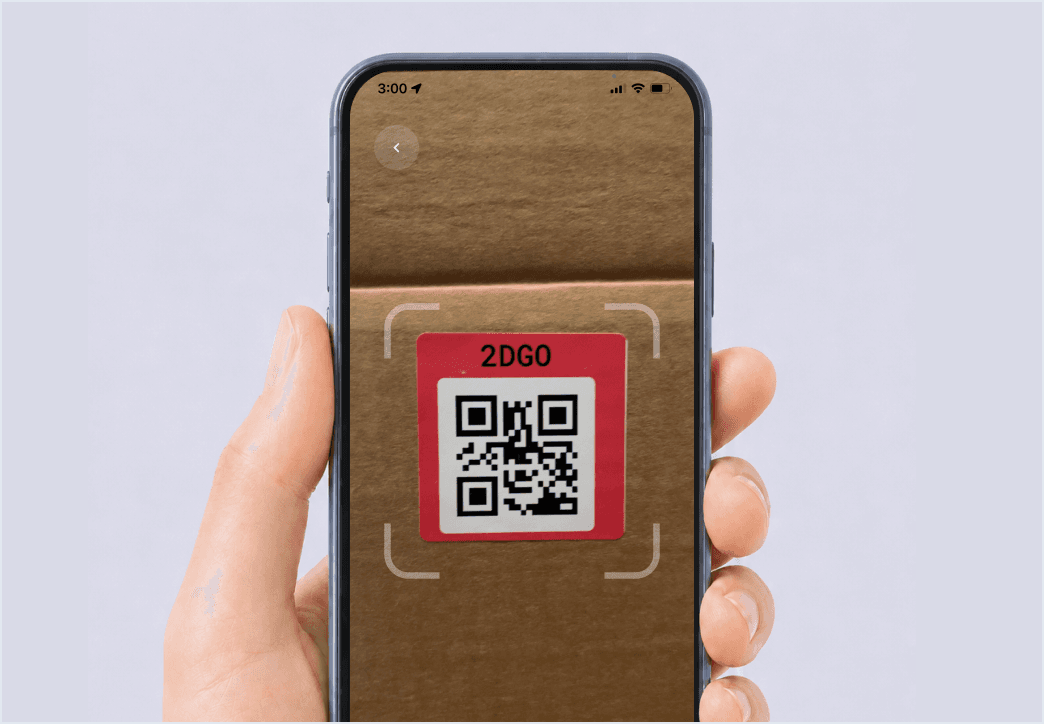
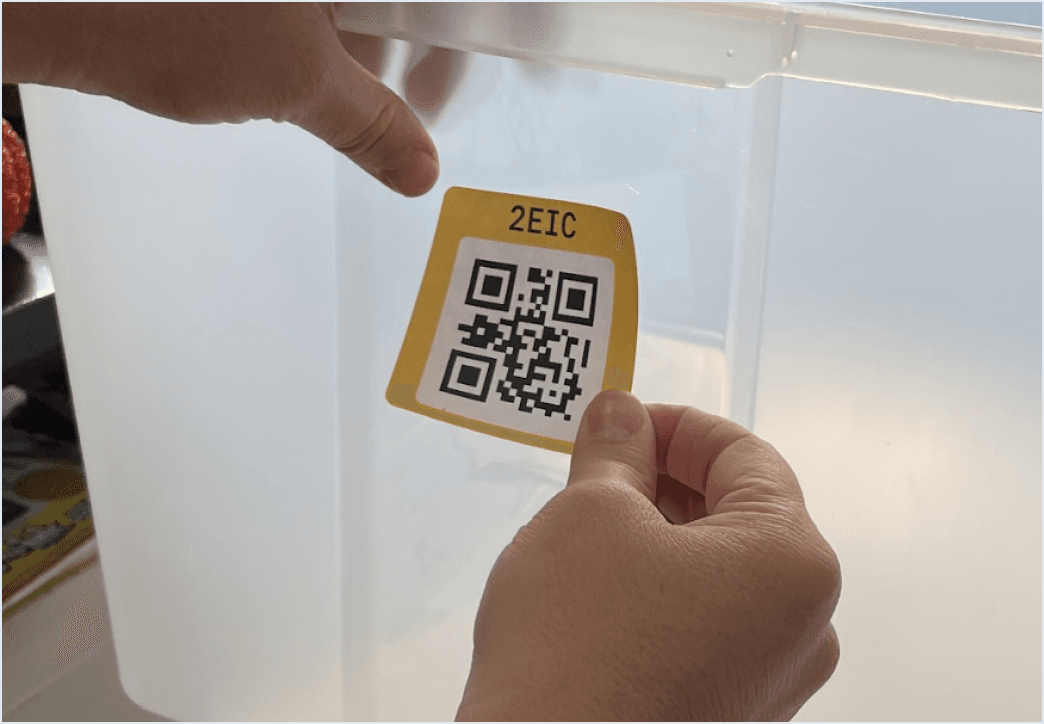
Peel and stick your SmartLabel onto any container. Open the app, tap the Scan button, and point your camera at the QR code. Each code is unique and links instantly to a new inventory entry.
- Works on plastic, cardboard, metal, and wood
- Tap the blue Scan button in the app
- Scanning takes under 2 seconds
- Each QR code is globally unique, never reused
Take a top down photo
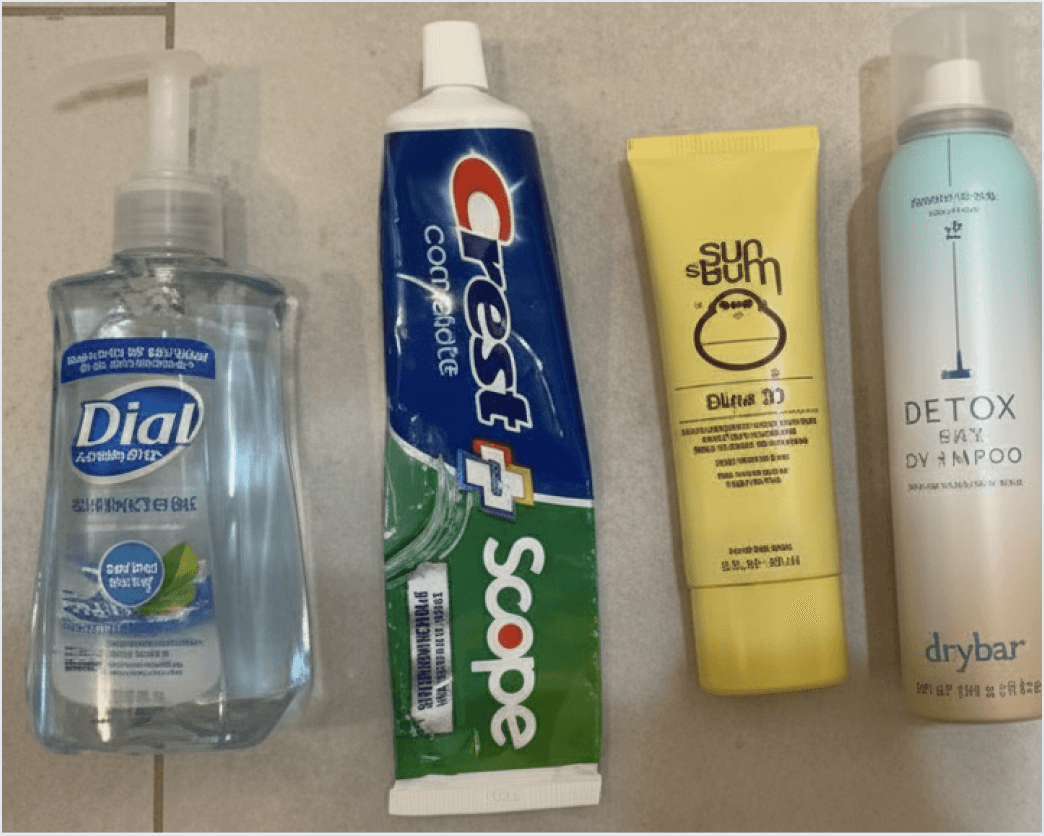
Next take a photo of all of the stuff going into your container and Smart Photo Extraction will auto-catalog everything in the picture into your labels!
- Try to take your photo with lots of light
- If there is a brand on an item make sure it is facing up
- If you have too many things to fit in the shot you can do it in batches
Add more items to your SmartLabel
Want to add more stuff to your SmartLabel? Just tap the add items button at the bottom of the label page and take another top down picture.
- Make sure any relevant text on your items is facing up
- Add as many items as you like
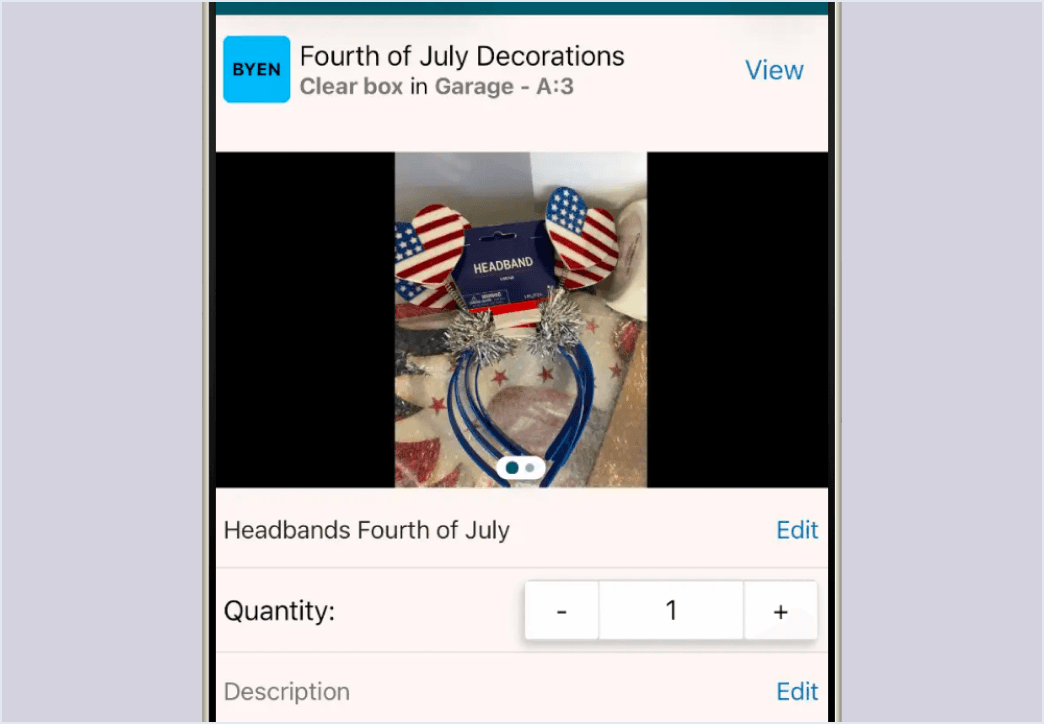
Search & Find Your Stuff
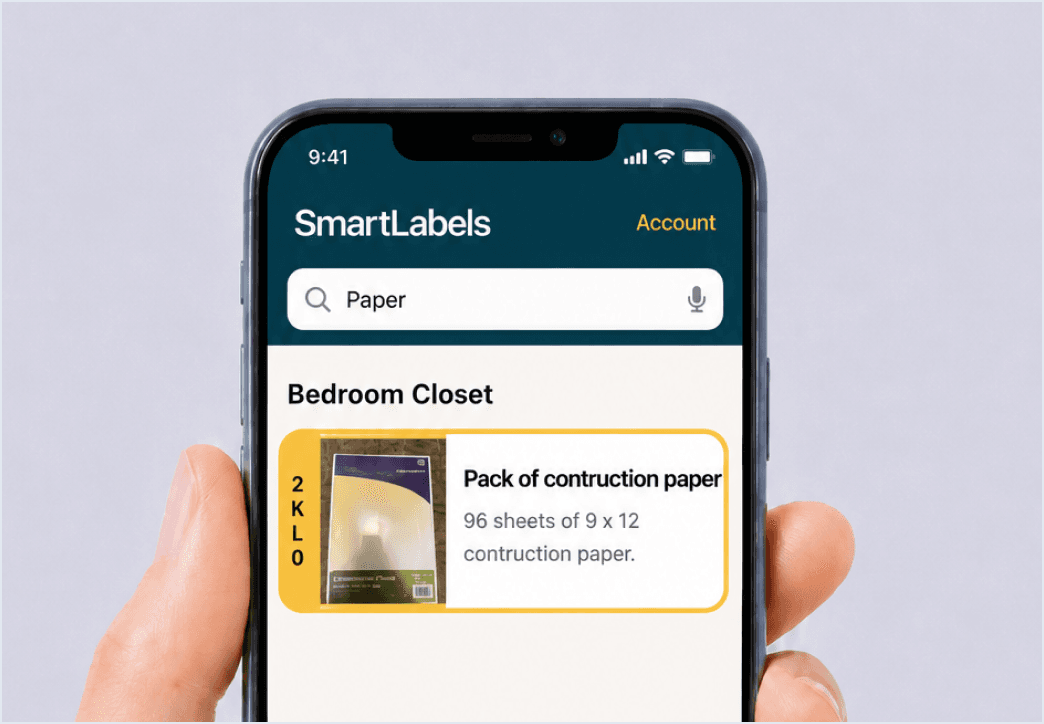
Use the search bar to instantly find any item across all your containers. Type a keyword, the app searches every label name, item name, description, and location, and shows which container holds it.
- Search all containers simultaneously
- Results show exact container location
- Filter by room or container type
- Share access with household members
Get the SmartLabels
App
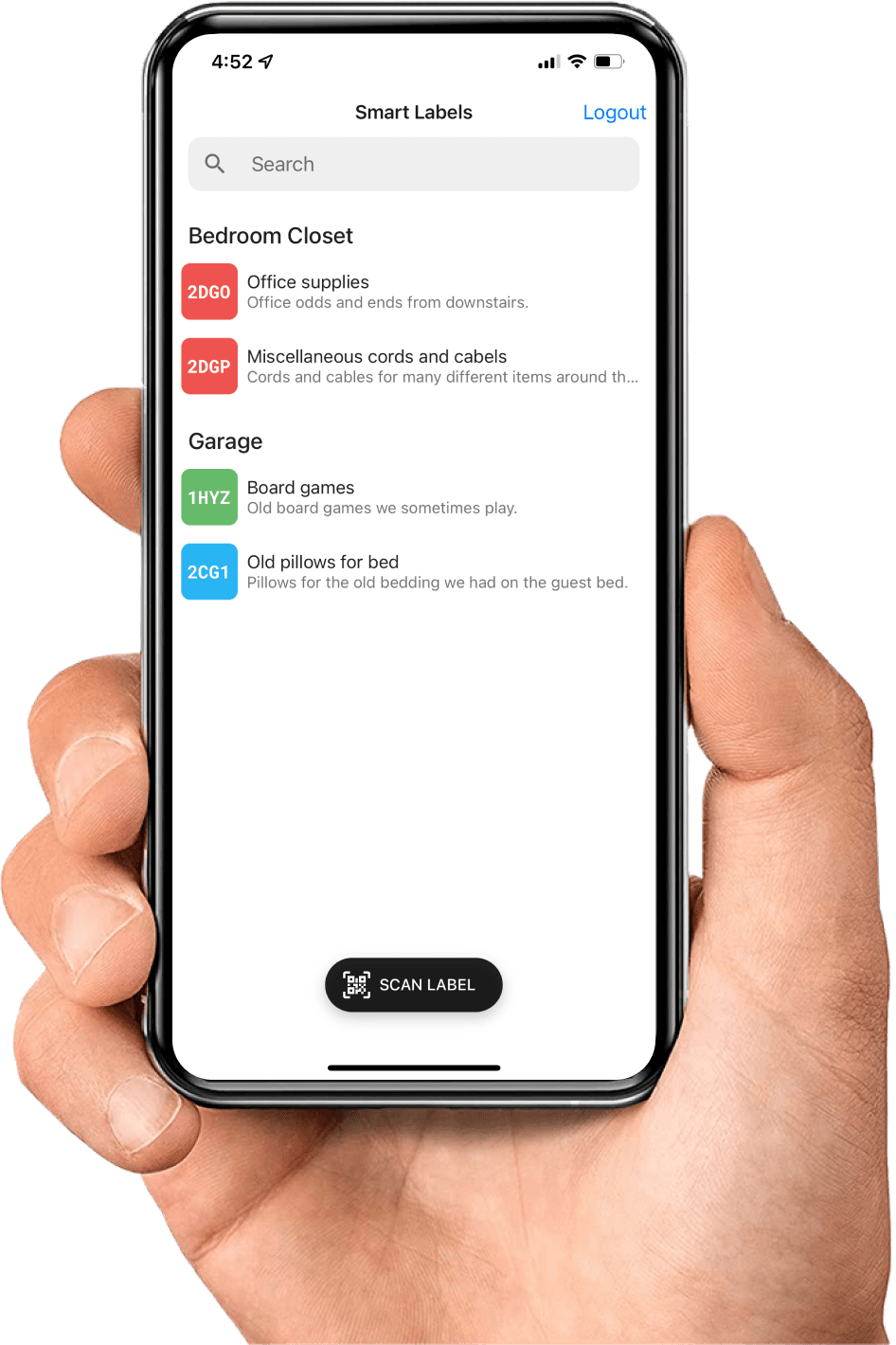
Scan labels, search your inventory, add photos and descriptions, all from your phone. Available on iOS and Android.